Presenting on stage
Open a setlist on a tablet or laptop and present it — charts sized to fit the screen, dark mode for dim venues, swipe or tap to move through the set.
Starting present mode
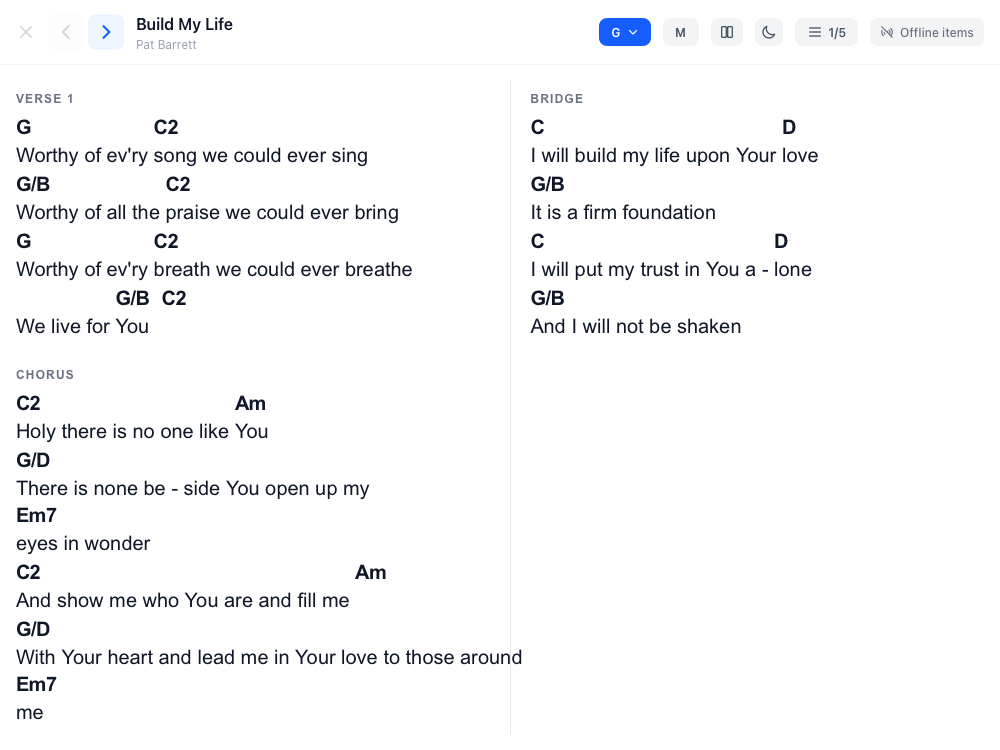
From a setlist page, hit Present. If any song has more than one key option (say, a capo'd guitar key and an open key), you'll confirm which one to use before you start — after that, it's full screen for the rest of the set.
While presenting
- Tap the arrows (or swipe left/right) to move between songs
- Change key on the fly if the leader calls an audible — the top-left key picker updates the chart instantly
- Toggle 1 or 2 columns, and light or dark mode, from the top bar
- The song list icon shows where you are in the set and lets you jump to any song directly
Presenting together (live sync)
One person leads, everyone else follows automatically — the worship leader changes song or turns the page, and every synced device updates within a couple of seconds. No one needs to be told "page 3 of song 4" over a shoulder-tap.
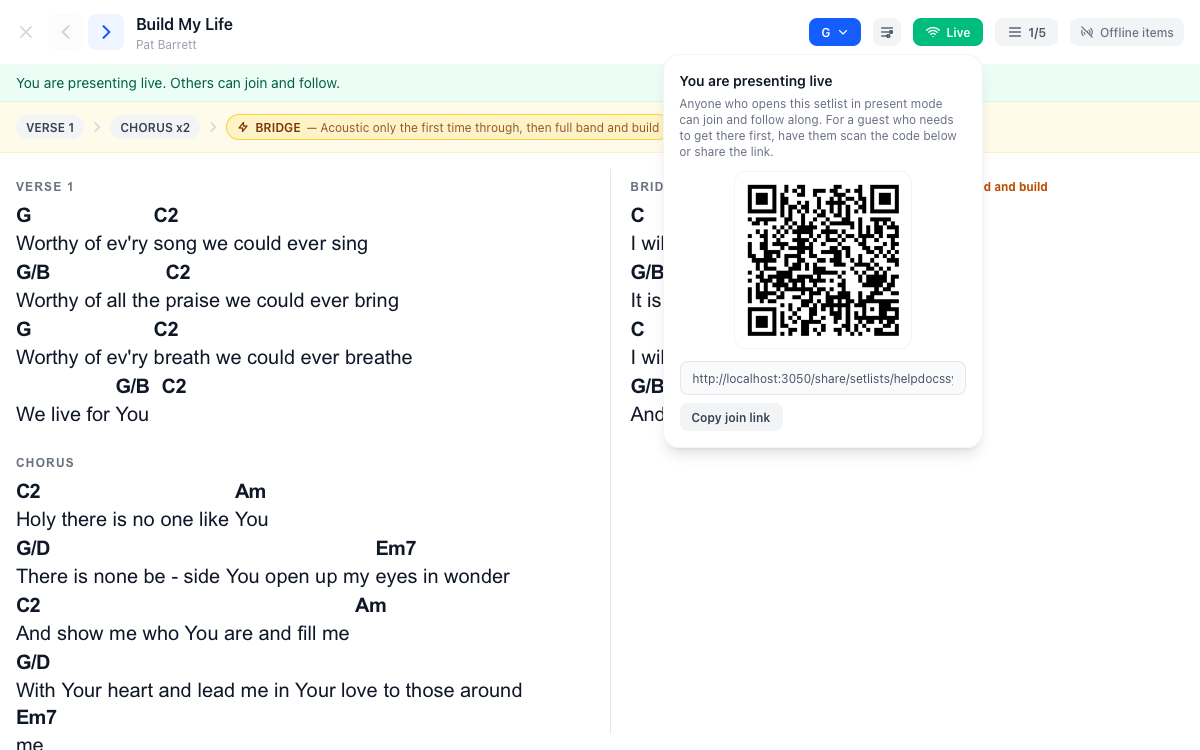
Hit the Sync button in the top bar, then Start synced session. Anyone else who opens this same setlist in present mode — a band member who already has the app, or a guest who doesn't — sees a banner offering to Join, and from then on their song and page follow yours.
Joining a synced session
If you already have access to the setlist, just open present mode normally — if someone's already leading, you'll see who and a one-tap Join button, no link needed.
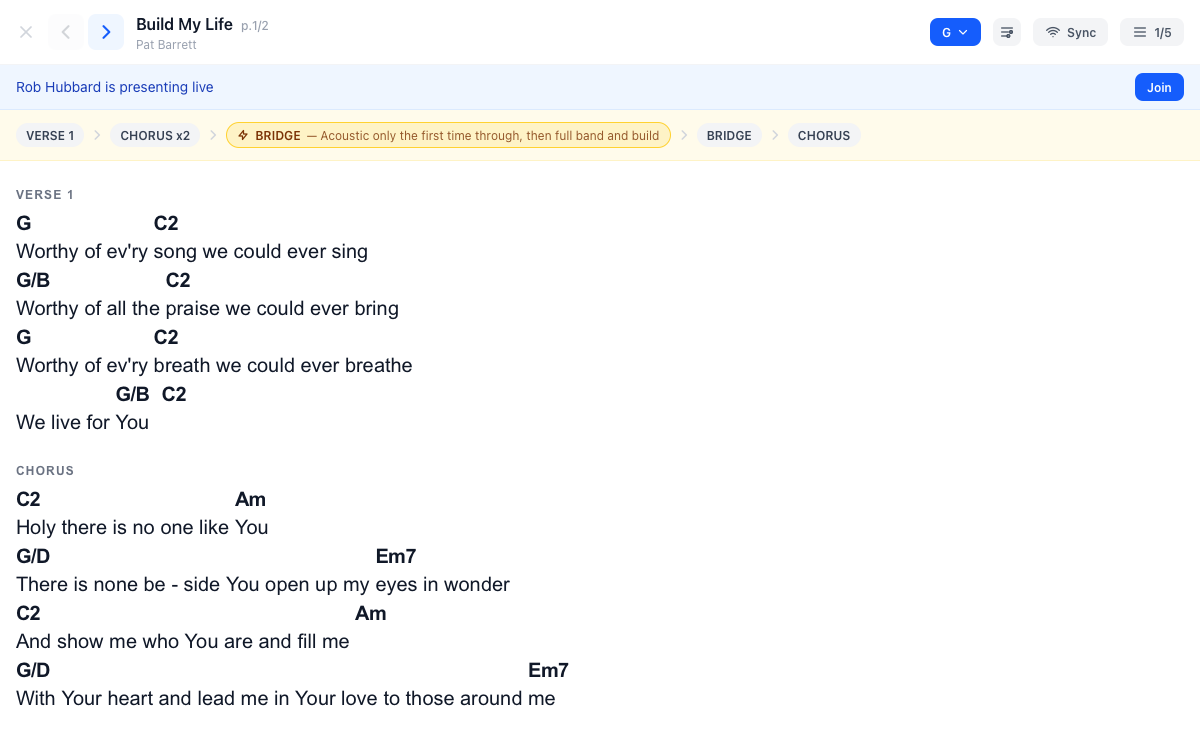
A guest scanning the QR code or opening the share link lands directly on present mode for that setlist and sees the same banner. Either way, joining is identical from there.
![A follower's present mode view, showing 'Following [name]' and the shared song/page](/help/sync-following.png)
Arrangement and performance notes
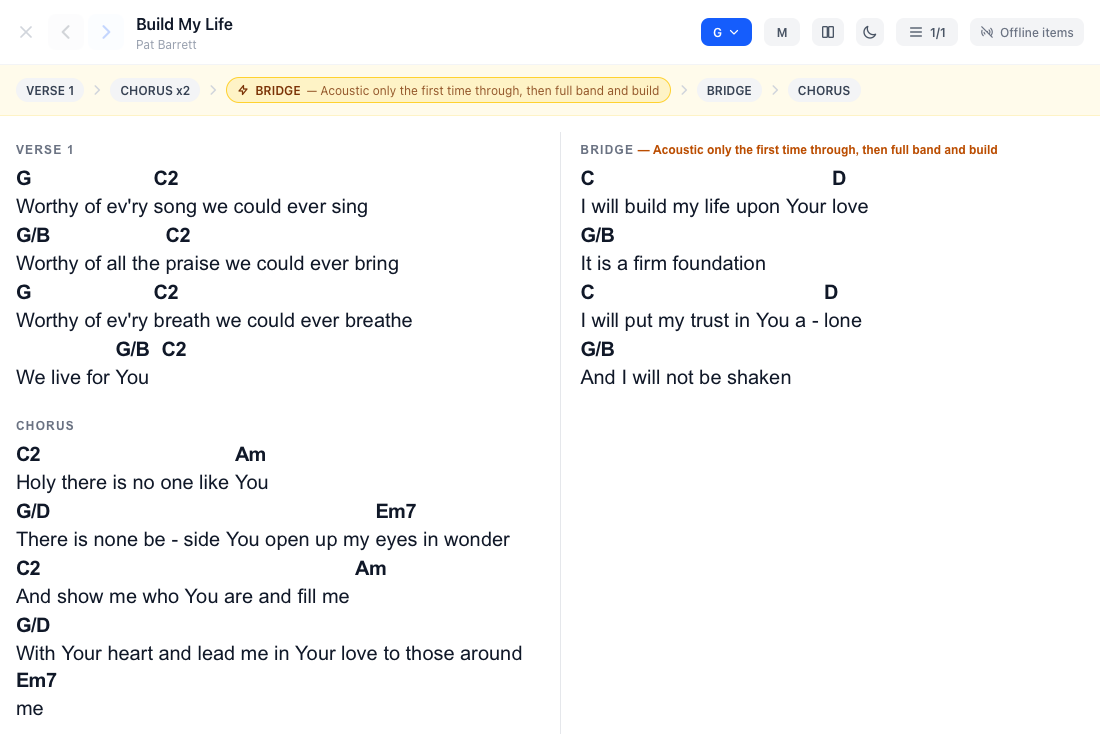
If a song has a built arrangement (see Setlists), present mode shows the whole running order in a banner at the top, and any note on a specific step — "acoustic only, then build" — appears both there and injected directly into that section's own header in the chart, so it's visible right when you're playing through it.
Long charts
If a chart is too long to fit on one screen, present mode paginates it automatically — you'll see a page count next to the song counter, and the same swipe/tap gestures move between pages before moving to the next song.