Getting started
Set up your group once, and everything else — setlists, run sheets, teams — builds on top of it.
Create your group
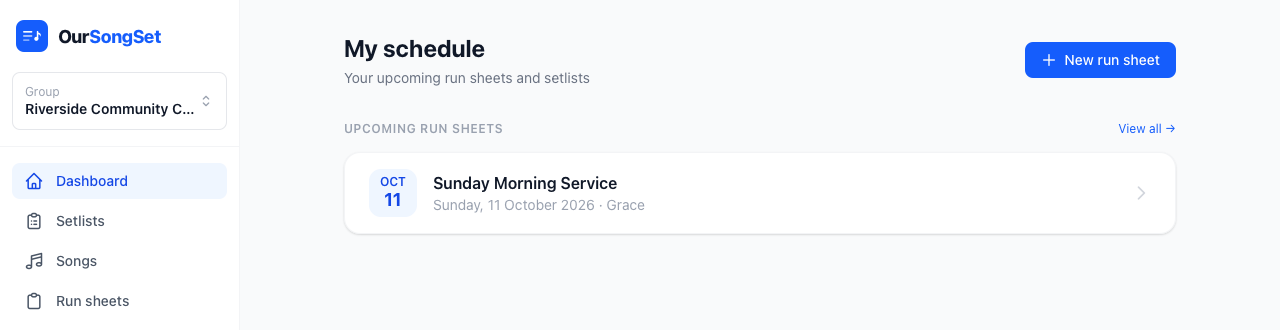
When you sign up, you'll create a group (we call it a "group" in the UI, even though the database still calls it an organisation under the hood — same thing). Your group is where your team, your songs, your setlists, and your run sheets all live.
You can belong to more than one group — say you play in your church's main band and also help out a smaller youth service. Switch between them with the group switcher at the top of the sidebar.
Set up categories and roles
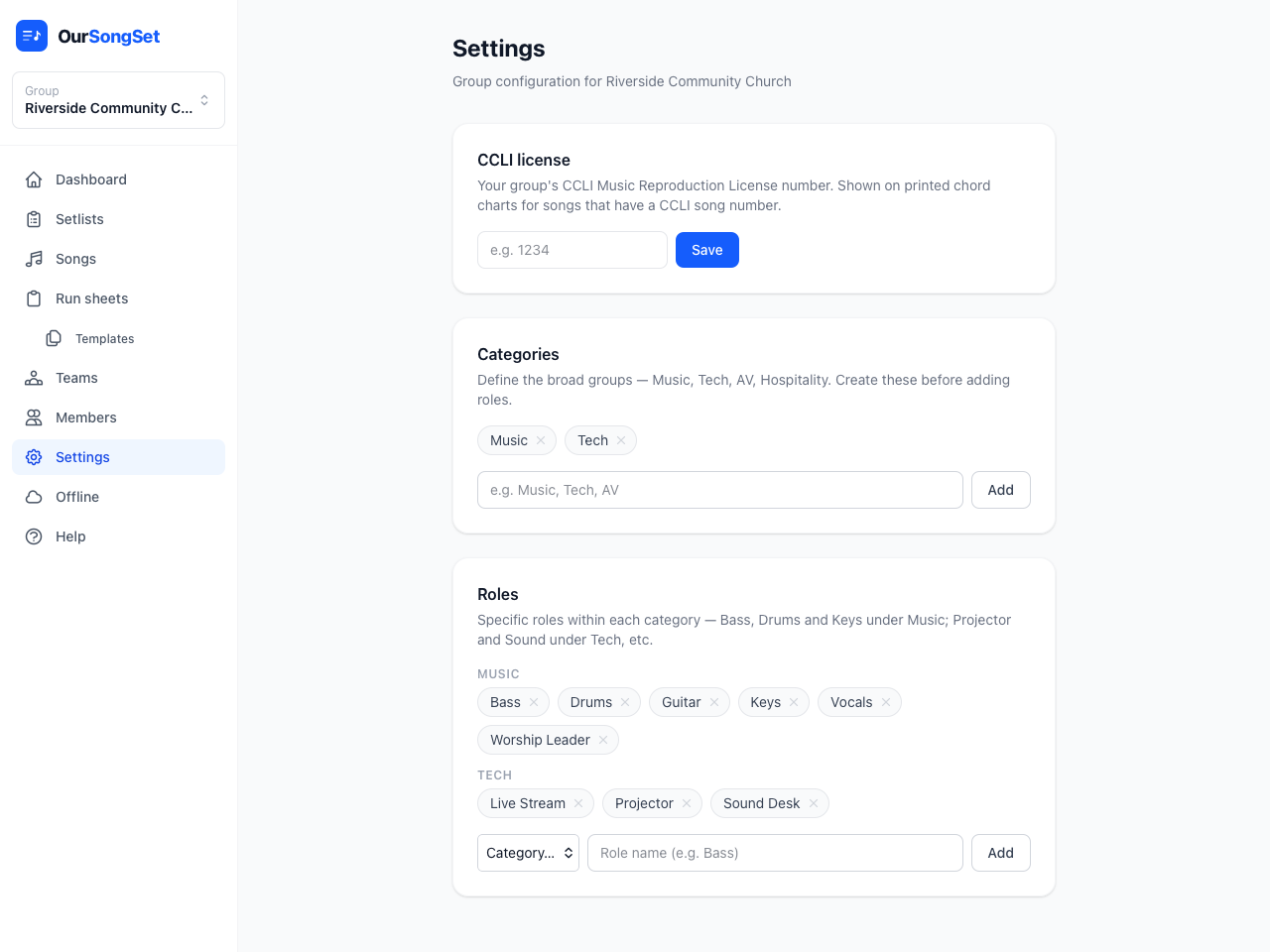
Before you build a team, decide what roles you actually need. Head to Settings and create categories — Music and Tech cover most groups — then add specific roles underneath each one: Bass, Drums, Guitar, Vocals under Music; Sound Desk, Projector, Live Stream under Tech.
This is also where you set your group's CCLI license number, if you have one. It's used on printed chord charts for any song that has a CCLI number, and it's completely optional if you don't need it yet.
Build your team
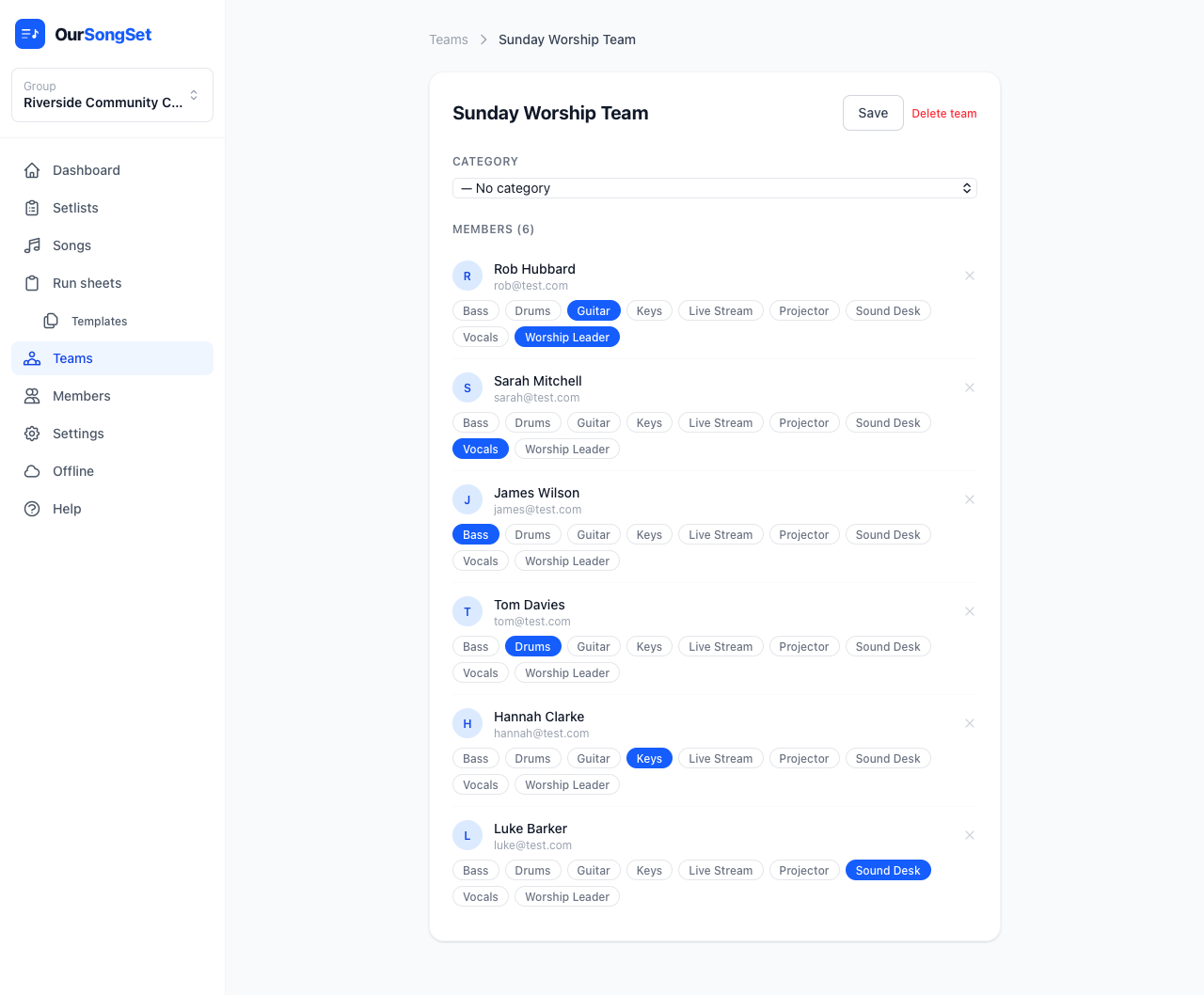
Go to Teams and create one — most groups just need one team to start with (e.g. "Sunday Worship Team"), though you can create as many as you need for different services or rotations. Add members by email, and assign each person one or more roles from the list you just set up. Someone who plays guitar and leads worship can have both roles — just tick both.
What's next
- Add some songs to your catalog — see Songs
- Build your first setlist — see Setlists
- Plan the whole event with a run sheet — see Run sheets